My Experience Using The TourBox Controller For Lightroom Classic Photo Editing
As a professional fine art photographer, I spend countless hours working in Adobe Lightroom Classic. Over the years, I've developed an editing workflow that allows me to work efficiently while maintaining the attention to detail that fine art photography demands. I'm always interested in tools that can improve that workflow, especially when they allow me to spend less time navigating software and more time concentrating on the photograph itself.
Recently, Tour Box sent me the Tour Box Elite to try out in my editing workflow and sponsored this article.
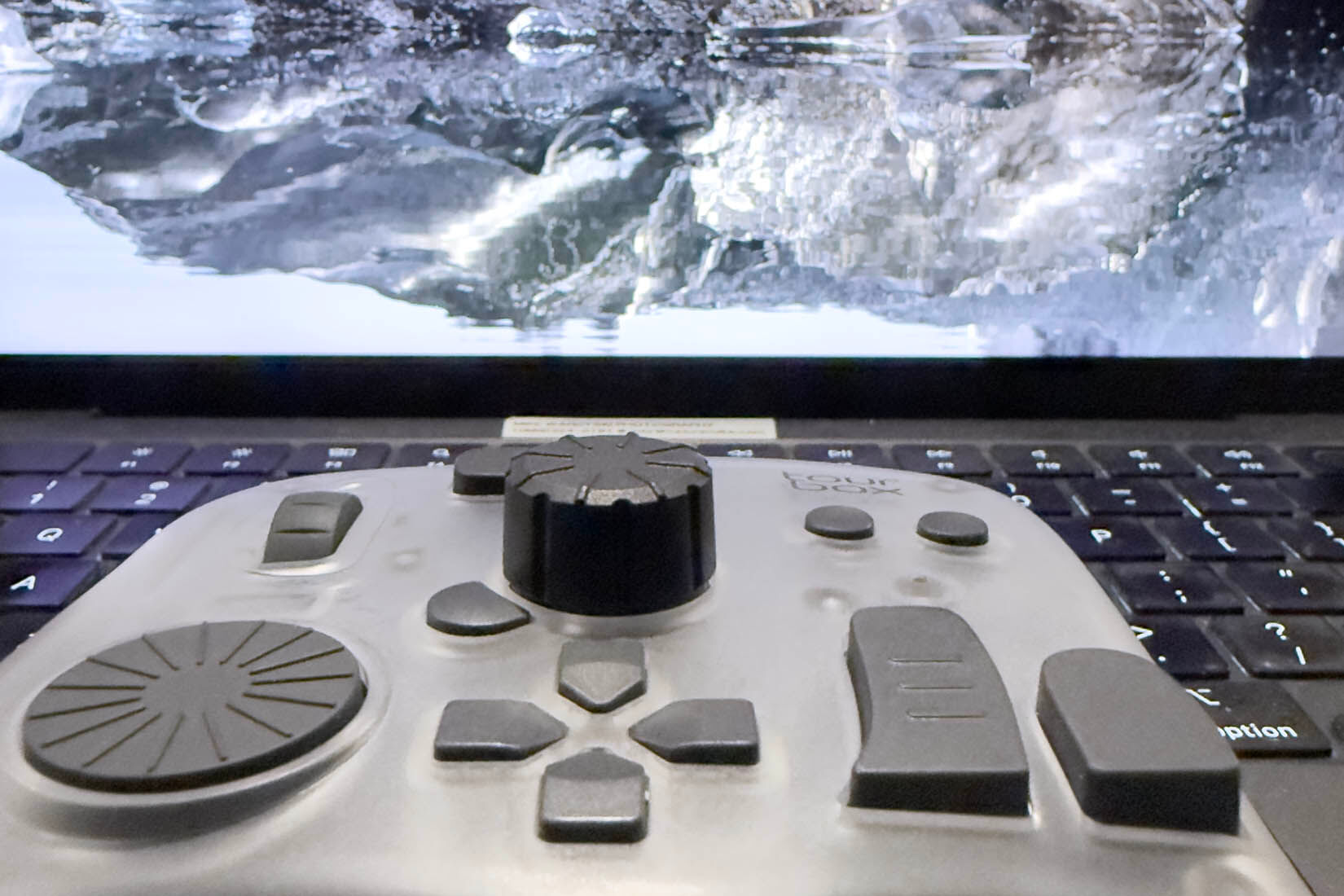
After receiving the product I incorporated the TourBox editing controller into my Lightroom Classic workflow. Although its customizable buttons, knobs, and wheels offer plenty of advantages, the feature that excites me most is the Dynamic Panel. It addresses one of my longstanding frustrations with Lightroom Classic, which is the amount of valuable screen space consumed by the editing interface. By allowing me to hide Lightroom's traditional panels and continue editing, TourBox provides a much more immersive experience, especially when I'm working on my laptop while traveling.
LEARN MORE AND PUCHASE YOUR TOURBOX HERE
The Problem with Lightroom Classic's Traditional Interface
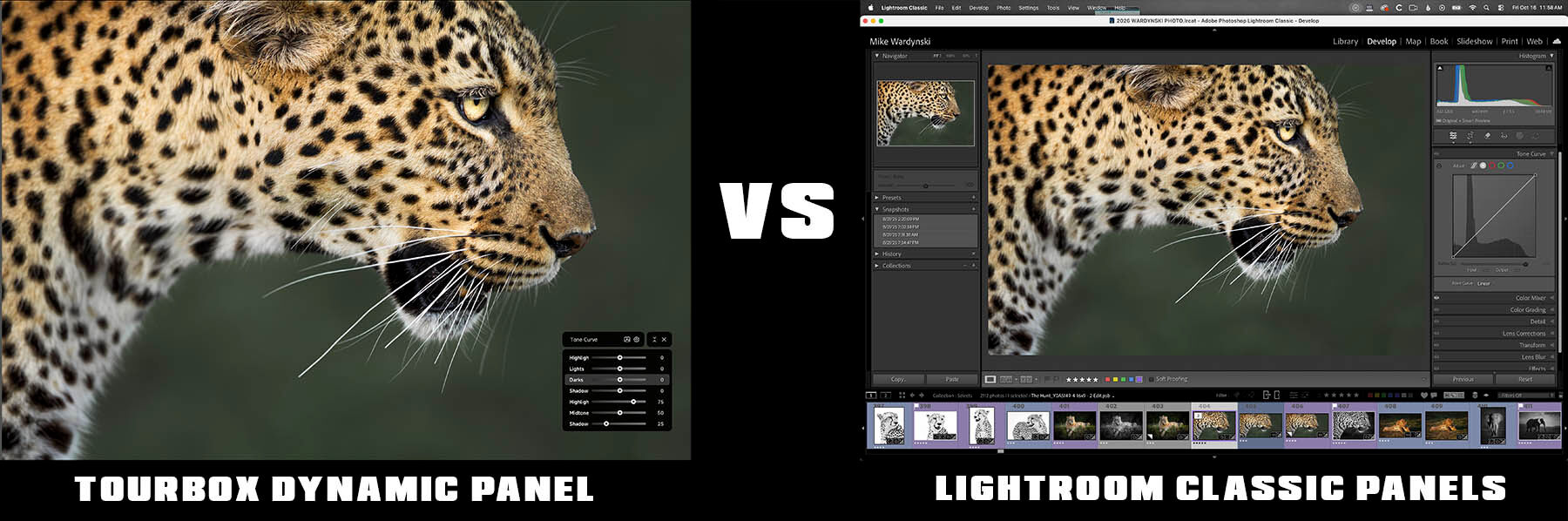
Lightroom Classic is an incredibly capable photo editing application, but its interface can feel restrictive, particularly when working on a smaller screen. In the Develop module, the right side of the workspace contains adjustment panels, the left side provides access to presets and navigation tools, and the bottom typically displays the filmstrip. While these elements are useful, they occupy a substantial portion of the display, leaving considerably less room for the photograph itself. Even on a reasonably large laptop screen, the image can feel confined by all the surrounding controls.
Of course, Lightroom Classic provides keyboard shortcuts that allow users to hide the side panels and filmstrip (Tab Key), but this introduces another inconvenience. When you need to adjust exposure, contrast, color, or another setting, you often find yourself revealing the panels, making an adjustment, and then hiding them again to evaluate the result. This constant switching interrupts the editing process and makes it more difficult to stay focused on the photograph. For photographers who spend a significant amount of time editing, these small interruptions can become surprisingly frustrating.
As someone who frequently travels internationally for photography workshops and personal projects, I encounter this limitation regularly. Although I enjoy editing on a large desktop monitor, there are many occasions when my laptop is my only option. Whether I'm working from a hotel room in Iceland, a lodge in Africa, or somewhere between photography destinations, I want to make the most of the available screen space. That's why TourBox's Dynamic Panel has become such an appealing addition to my editing workflow.
TourBox Dynamic Panel: A Better Way to Edit in Full Screen
The Dynamic Panel is, in my opinion, one of the most compelling reasons for Lightroom Classic users to consider TourBox. Rather than requiring Lightroom's traditional adjustment panels to remain visible, TourBox provides a floating interface that allows photographers to access and manipulate editing controls independently of Lightroom's fixed workspace. This means I can hide the left and right panels, remove the bottom filmstrip, and dedicate nearly the entire display to the photograph while retaining access to the tools I need.
What makes this feature particularly useful is how naturally it integrates with the physical controller. I can use TourBox's knobs and wheels to make adjustments while the Dynamic Panel provides a visual reference for the selected setting. Instead of constantly moving my mouse to the right side of Lightroom to locate individual sliders, I can keep my attention on the photograph and make adjustments directly from the controller. When I no longer need the floating panel, I can dismiss it and return to an unobstructed view of the image.
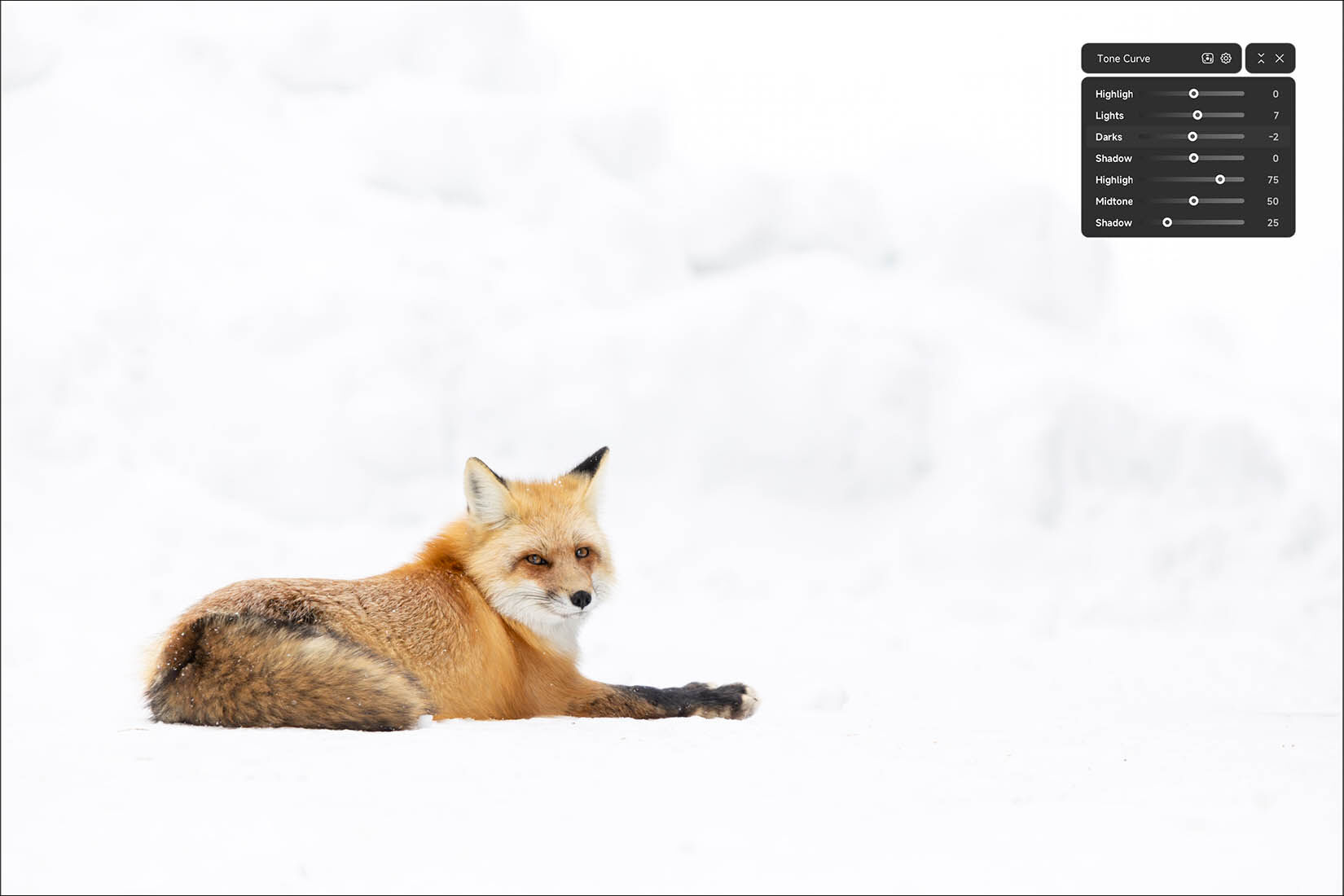
For my style of photography, this approach has some meaningful advantages. Much of my fine art work emphasizes minimalism, atmosphere, and the relationship between a subject and its environment. When I'm editing a photograph of a lion surrounded by open space or a landscape with subtle variations in light, I want to evaluate the entire composition rather than concentrate on a small image surrounded by menus. Being able to view the photograph at a larger size makes it easier to judge the overall balance, tonal relationships, and visual impact of the image.
Why Full-Screen Editing Is Especially Valuable for Traveling Photographers
One of the situations where TourBox really stands out is when I'm editing photographs on my laptop while traveling. My photography takes me around the world, often for extended periods, and I regularly need to review and process photographs away from my primary editing workstation. Sometimes I'm preparing images for workshop participants, while other times I'm working through photographs captured earlier in the day. Regardless of the situation, having more room to view the image makes the experience considerably more enjoyable.
With Lightroom's conventional interface, a substantial portion of a laptop display is occupied by panels and controls. By hiding those elements and relying on the TourBox Dynamic Panel, I can effectively transform the laptop into a much more spacious editing environment. The increased image area is particularly helpful when making subtle adjustments to color, contrast, and luminosity, because I can evaluate those changes across a larger representation of the photograph rather than constantly switching between editing and viewing modes.
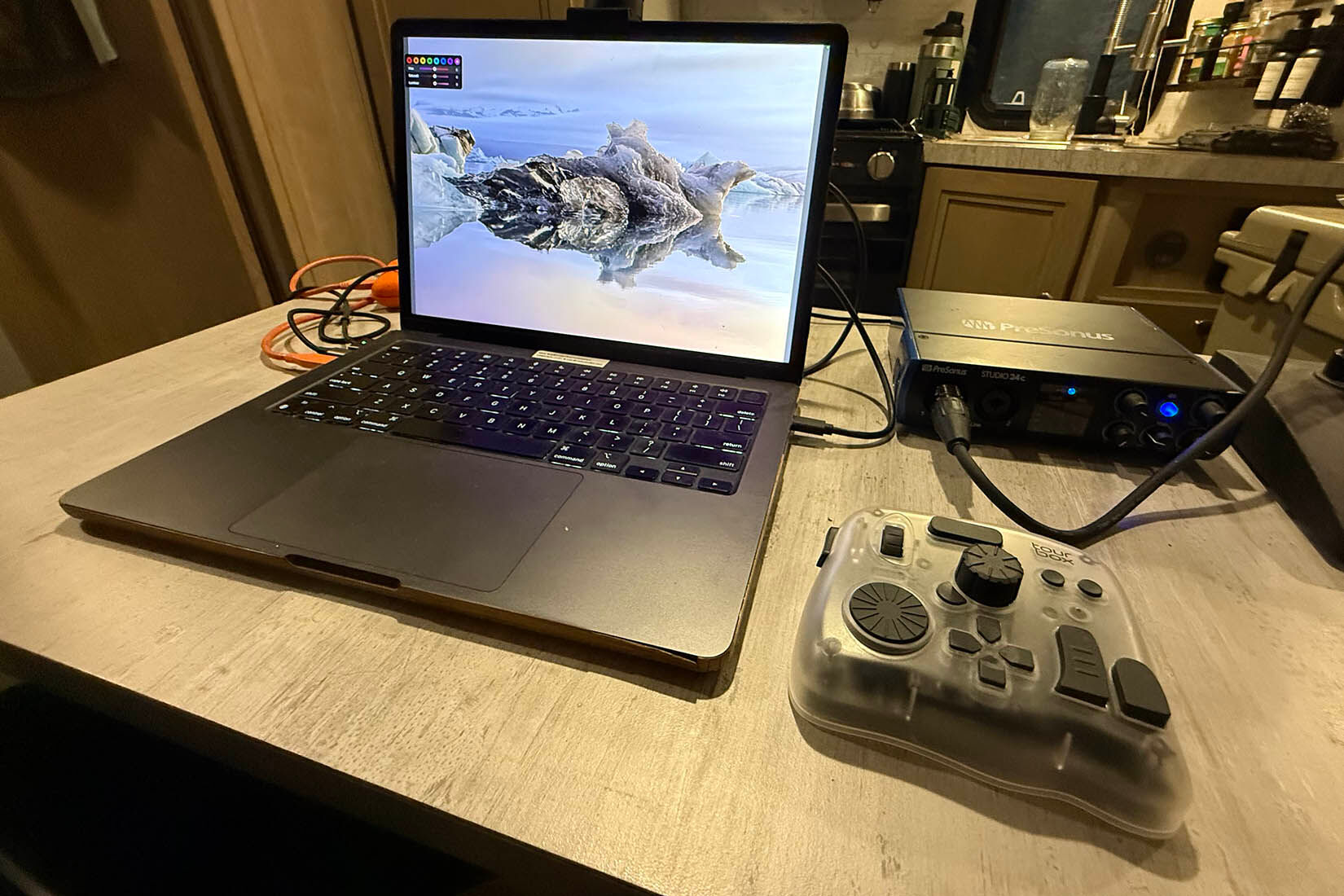
This is also useful when reviewing composition. In wildlife photography, the placement of an animal within its surroundings often plays an important role in the emotional impact of an image. Similarly, landscape photography frequently depends on carefully balanced relationships between foreground, background, light, and negative space. Viewing the photograph as large as possible helps me evaluate those relationships more effectively. While TourBox doesn't physically increase the size of my laptop display, it allows me to use substantially more of that display for what matters most, the photograph.
Customizing TourBox for My Personal Editing Workflow
One of the features I appreciate most about TourBox is the ability to customize its controls around the way I actually edit photographs. Every photographer has different priorities, and the tools I use when processing wildlife and landscape photographs may be quite different from those favored by portrait or commercial photographers. Rather than forcing everyone to work with the same predefined controls, TourBox allows users to assign functions and shortcuts to suit their individual preferences.
For example, noise reduction is an important part of my wildlife photography workflow, particularly when working with images captured in low-light conditions. I've configured my TourBox so that double-clicking the C1 button instantly applies one of my favorite denoise presets in Lightroom Classic. This allows me to initiate a frequently used adjustment without navigating through Lightroom's preset panel or searching for the appropriate command. It's a simple customization, but when processing a large collection of wildlife photographs, small efficiencies like this can make a noticeable difference
I've also assigned shortcuts for several of my favorite masking tools, including Radial Gradient, Linear Gradient, Select Subject, and Select Sky. These are tools I use regularly to refine individual areas of a photograph, control the viewer's attention, and create a more polished final image. Having convenient access to them allows me to move between different editing tasks without repeatedly navigating menus or remembering numerous keyboard shortcuts.
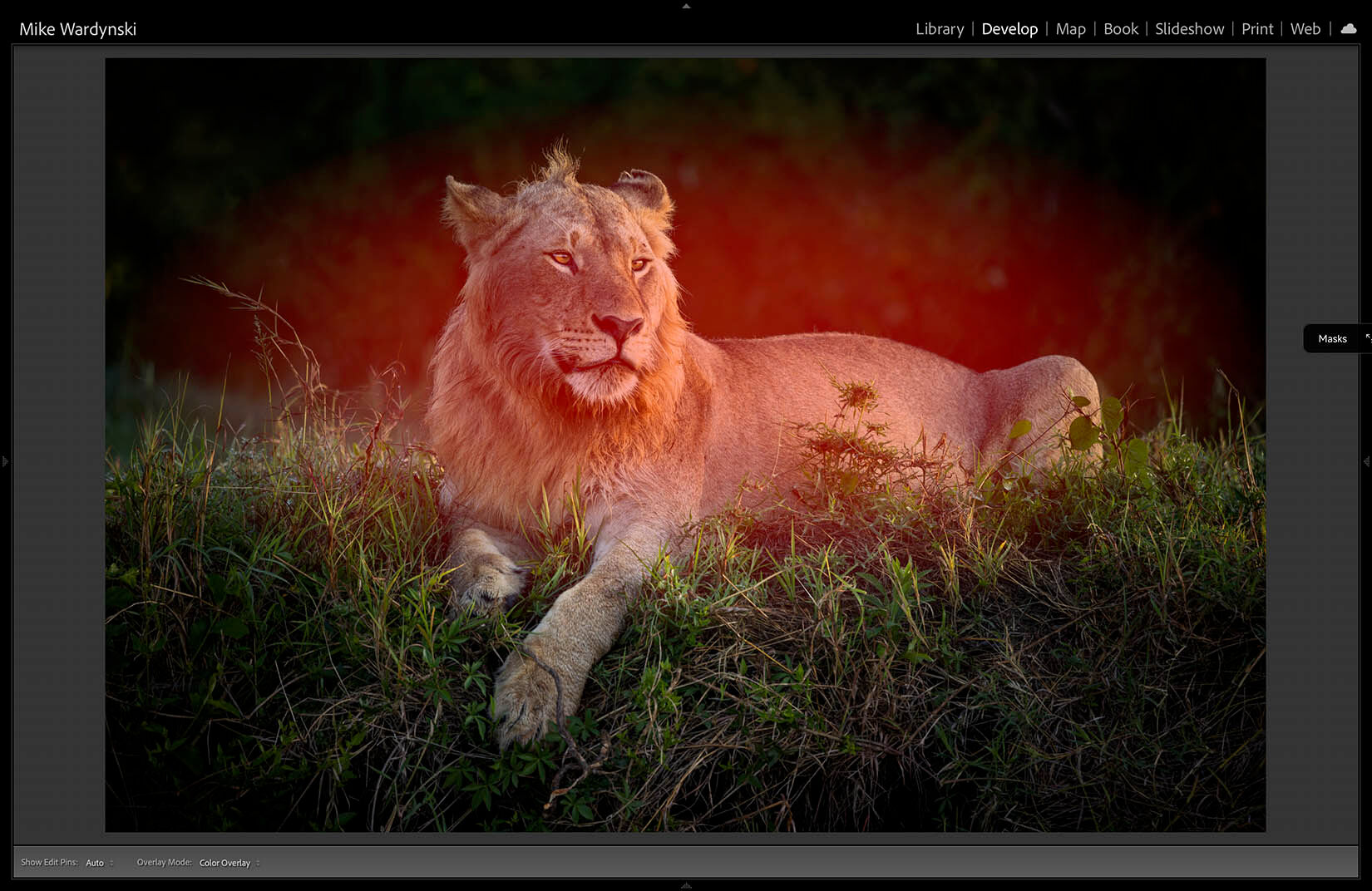
The ability to customize TourBox is especially appealing because it allows the controller to evolve with your workflow. You don't need to assign every available button immediately, and I would actually recommend starting with a relatively simple configuration. Once you've become comfortable with a handful of frequently used controls, you can gradually introduce additional shortcuts and functions that make sense for your editing style.
New Visual Color Grading Wheels and Tone Curve
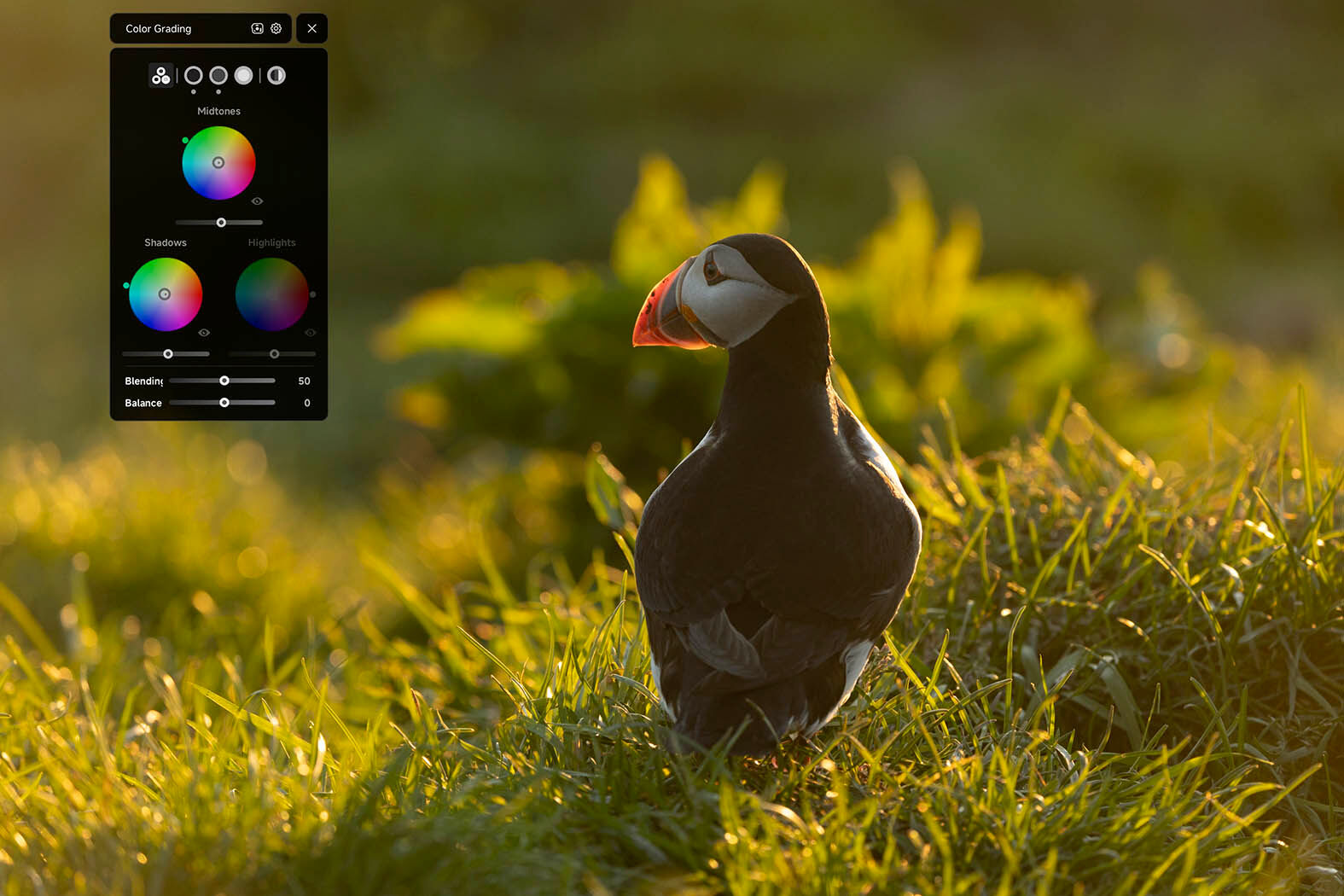
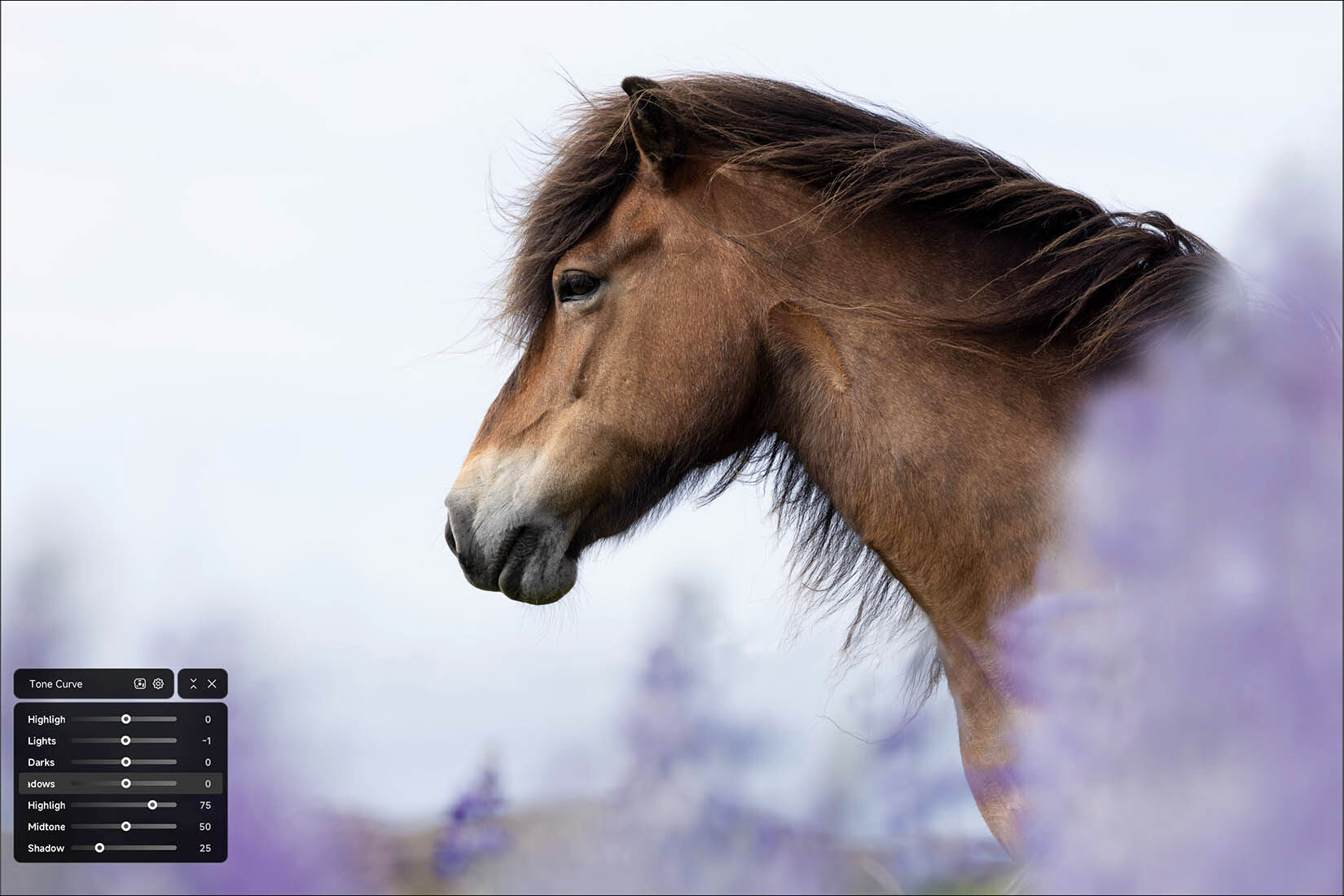
One of the most exciting developments in the updated TourBox Console is the introduction of enhanced visual controls within Dynamic Panel V2. These include graphical Color Grading wheels and an interactive Tone Curve, both of which provide a more familiar editing experience while retaining the benefits of TourBox's floating interface. Rather than relying exclusively on compact parameter controls, photographers can now work with visual tools that closely resemble the native controls found in Lightroom Classic.
The new visual Color Grading wheels are particularly interesting because they provide a more intuitive way to adjust color relationships within an image. Color grading can have a dramatic influence on the atmosphere of a photograph, whether you're introducing warmer highlights into a sunset landscape or adding cooler tones to the shadows of a wildlife portrait. With the updated Dynamic Panel, photographers can interact with the color wheels while using TourBox's physical controls to adjust hue and saturation, making the process more tactile and visually engaging.
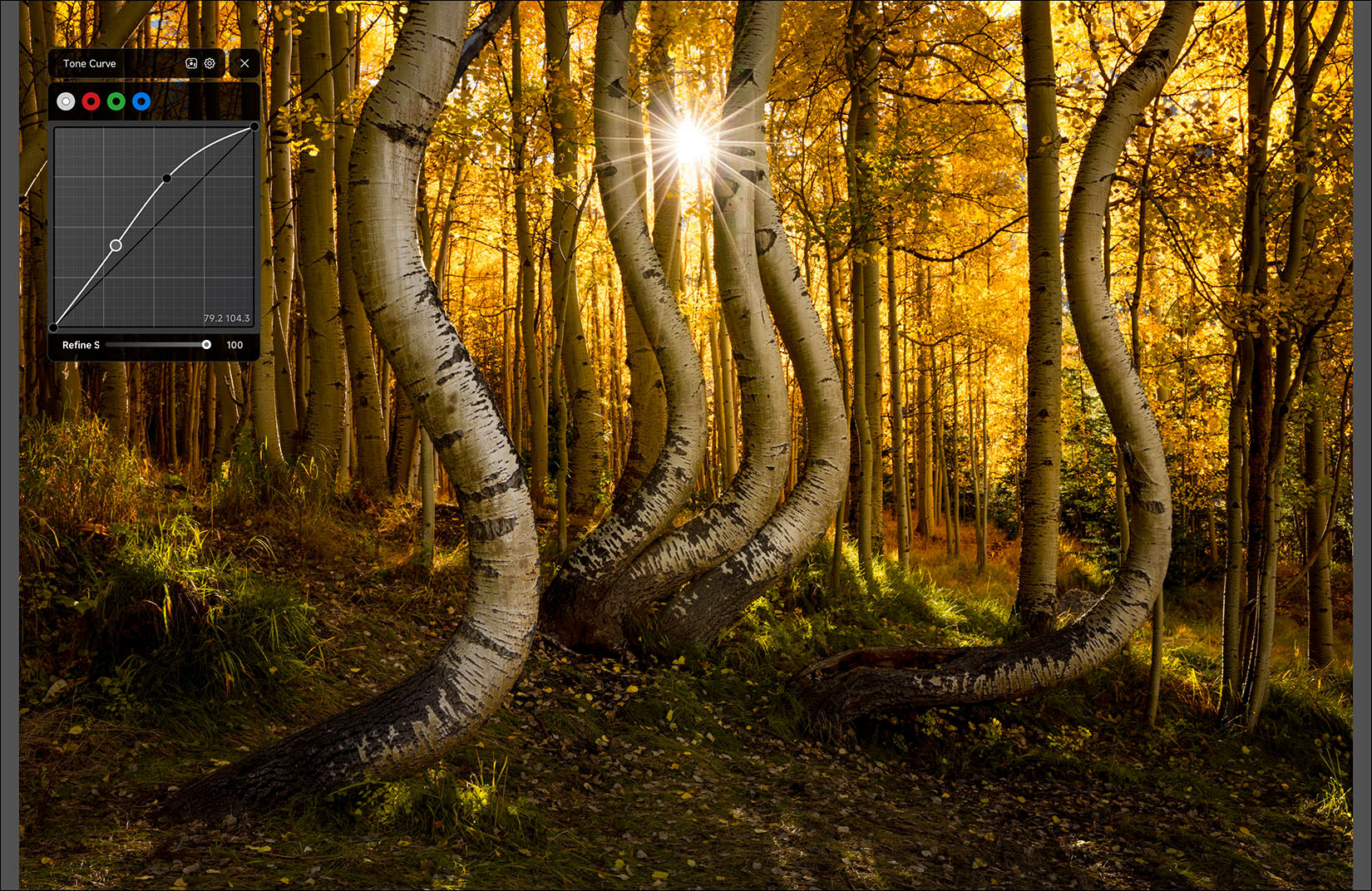
The updated Tone Curve is another welcome improvement. I frequently use tonal adjustments to refine contrast and control how light is distributed throughout an image, and the Tone Curve provides a level of precision that isn't always possible with basic adjustment sliders. TourBox's graphical interface allows photographers to work directly with curve points while using the controller's knobs and wheels for fine adjustments. The ability to view and manipulate these controls within the Dynamic Panel is particularly appealing because it reduces the need to return to Lightroom's fixed editing interface.
For photographers who rely heavily on color grading and precise tonal adjustments, these additions make the Dynamic Panel an even more capable editing environment. They also demonstrate how TourBox continues to expand its functionality beyond simple keyboard shortcuts, offering tools that can genuinely change the way photographers interact with Lightroom Classic.
Is There a Learning Curve?
Like any customizable editing controller, TourBox takes a little time to become familiar with. If you've spent years working with Lightroom's traditional sliders and keyboard shortcuts, developing the muscle memory needed to operate a separate physical controller won't happen immediately. However, I've found that the learning process becomes much easier when you begin with the adjustments and commands you use most frequently.
Rather than trying to memorize dozens of button combinations, I recommend building a simple configuration that includes your favorite basic adjustments, masking tools, and presets. As you become more comfortable with the controller, you can gradually expand the functionality to include additional commands. The goal isn't necessarily to eliminate every mouse movement or keyboard shortcut, but to create a workflow that feels natural and makes your most important tools easier to access.
Final Thoughts: Putting the Photograph First
After more than two decades working as a professional photographer, I've learned that improving an editing workflow isn't simply about doing things faster. It's about removing unnecessary distractions and creating an environment that allows you to concentrate on the creative decisions that ultimately define a successful photograph. TourBox offers an interesting approach to that challenge by combining customizable physical controls with an interface designed to reduce the amount of time spent navigating Lightroom Classic.
For me, the standout feature is unquestionably the Dynamic Panel and the freedom it provides to work in a nearly full-screen editing environment. This is especially valuable when I'm traveling and editing on a laptop, where every inch of available screen space matters. Combined with customizable shortcuts, instant preset access, masking controls TourBox can be a useful companion to the Lightroom Classic workflow.
Ultimately, TourBox isn't going to replace the creative vision, technical knowledge, or careful decisions that go into making a compelling photograph. What it can do is make the editing process more immersive and enjoyable. For anyone who spends substantial time editing in Lightroom Classic, particularly photographers who frequently work on a laptop, I think the TourBox Dynamic Panel is well worth exploring.