How To Set Up The Canon R5II Menu and Shooting Preferences
The Canon EOS R5 MKii is one of the most powerful cameras that Canon has ever made. It has advanced auto focus features and offers many ways to customize the menu and shooting experience. This tutorial is a step-by-step guide that demonstrates how to set up the Canon R5ii straight out of the box. I have recorded a video tutorial covering the same topic. I highly recommend watching it first and then use this article as a fallback guide.
We will be changing a lot of menu settings in this tutorial so it's important to mention how to open the main menu. Are you ready for it? Here it goes, Simply hit the menu button on the back of the camera.
You can scroll through the top menu by using the shutter dial. Use the aperture dial or multi-direction controller to scroll up and down and hit the Set button to open a submenu or select a particular option.
Some menus require you to use the Info and or Rate buttons to change specific settings. This information will be noted on the bottom of the menu screen if they required. Lastly, you can use the camera's touch screen to quickly navigate to a specific menu item.
Recommended Red Menu Changes For Canon EOS R5ii
The red menu is where most of the camera’s main shooting settings are changed. There are some very important settings that should be adjusted before taking your first shot. Continue reading to find out more.
Choosing The Image File Type

Canon R5ii menu settings | RED MENU 1 | Image type and quality
The Canon R5ii shoots in JPEG by default. This is the most important menu setting that you need to change before shooting. RAW files have much more data than jpegs and are a superior file type. It is highly recommend that you shoot in RAW or RAW + JPEG. If you are worried about file size, you can choose to shoot in C-RAW which stands for compressed RAW. Compressed RAW has minimal effect on the final image while reducing the file size significantly.

Canon R5ii menu settings RED Image Quality
To change the image quality hit the "Menu button" on the back of the camera and navigate to red menu number 1. (Look at the upper right hand corner of the camera menu to see what menu number you are on). Choose "image type/size". In the "Image Type / Size" menu, use the shutter dial to choose your desired RAW settings and use the aperture wheel to choose your desired JPEG/HEIF settings. L = large, M = Medium, S1 = Small, S2 = Smallest.
Changing JPEG/HEIF image quality
If you're going to be shooting in JPEG/HEIF, I recommend changing the image quality to the maximum if the images are for any purpose other than reference.
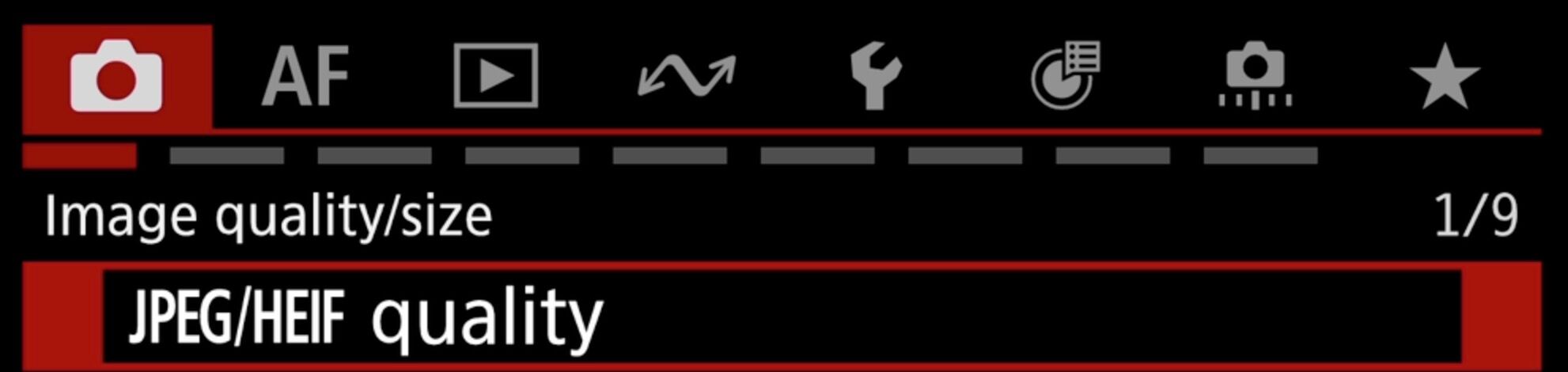
Canon R5 Mkii jpeg image quality menu
The first menu item in red menu number 1 is "JPEG/HEIF Quality". Open this menu with the set button and change all of the quality options to their max setting even if you do not plan on shooting in JPEG. The reason I do this is to give myself a bit of a safety net in case I accidentally end up shooting in JPEG only. You might be thinking that you'll never accidentally shoot "JPEG only", but I've seen it happen more than once to people on my workshops.
Use the aperture wheel to choose the image size, hit the "Set button" and then use the shutter dial to change the image quality to 10.

Canon R5 Mkii JPEG quality menu
How To Expand ISO Settings on Canon R5ii
The low ISO (50) setting is turned off by default on all Canon cameras. Canon does this because ISO 50 (L) is not a native ISO. Non-native ISOs have slightly less dynamic range than native ISOs. With that being said, there may be times when you want to shoot at ISO 50. For example you may need to double your exposure time and you can do so by lowering your ISO from 100 to 50. keep in mind that you will have slightly less dynamic range but this might not be an issue if you are shooting in low contrast light anyway.

Canon R5 Mkii Red menu 2 iso speed settings
To enable expanded high and low ISOs, navigate to red menu number 2 and select "ISO Speed Settings". Next scroll down to "ISO Speed Range" and hit the Set button.

Canon R5 Mkii ISO speed settings
Navigate to minimum, hit Set and choose L(50). Then navigate to maximum and choose H(102400) if you'd like to expand the high ISO by one stop as well. Note that high ISO shots will be extremely grainy. Ultra high ISO settings are mostly used for security/documentary purposes.

How To Change The Picture Style on Canon R5ii

Canon R5 ii Picture Style Settings
There may be times where you want to change the overall look of your images while shooting. For example, you can set the camera to the "Landscape Picture Style" for a more vivid scene or you can choose the "Monochromatic Picture Style" to shoot in black and white. I often choose to create a "user defined" preset and crank the saturation to three or four for landscape photography. I do this because I want to be excited about what I'm shooting and sometimes colors are muted on the default
"picture style".
NOTE: The picture style has no effect on RAW images, only JPEG and HEIF. You will see the effect of the chosen picture style in the viewfinder but once the RAW images are imported into a RAW editor they will go to flat color, even if you shot in black and white.
To change the Picture Style go to red menu number 3 and select "Picture Style" at the top of the list.

Canon R5ii menu settings picture style
Scroll down to the style that you want or create a new one by going to "User Def. 1" Hit the "Info button" to edit a particular Picture Style.
How To Change The Color Space On The Canon R5ii

Canon R5 MKii menu settings | Color Space and picture style
RAW images are not assigned a color space. JPEG and HEIF file are, on the other hand. You can change the colorspace that your camera records by navigating red menu number 3. Hit the set button and choose between sRGB and Adobe RGB. Adobe RGB can record more color information so it is recommend to switch from sRGB to Adobe RGB even if you do not plan on shooting in JPEG/HEIF. If you end up accidentally shooting JPEG only, at least you will be shooting in a larger colorspace.
Switching Between Electronic and Mechanical Shutter On Canon R5ii
There may be times when you want to switch between electronic, electronic first curtain and manual shutter on your Canon R5ii. By default, the camera is set to "Electronic First Curtain".
To change the shutter mode navigate to red menu number 6. Scroll down to "Shutter Mode" and hit Set.

Canon R5ii | How to switch between electronic and mechanical shutter
How To Turn Release Shutter Without Card Off
In most cases you want to turn "Release Shutter Without Card" off. This will prevent you from mistakenly shooting with the camera when there is no memory card inserted.
NOTE: You may have to turn this feature back on if you want to shoot tethered to a computer.
To turn release shutter without card off, navigate to red menu number 6 and choose "Release Shutter Without Card".

Canon R5ii Red menu | Release shutter without card off
How To Customize Quick Controls (The Q Menu)
The Q menu (Quick Control Menu) is where you can program quick access to the camera features you use the most.To access the Q Menu, simply hit the "Q button" on the back of the camera. You can save up to 11 menu items for quick access.

Canon R5 MKii How To Customize The Q Menu
To customize the Q menu, navigate to red menu number 7 and choose "Customize Quick Controls", then choose "Edit Layout"
When the "Customize Quick Controls" dialog opens, you can add and remove items as you wish. Below is a list of the options that I think are the most useful.
•AF Area: This allows you to quickly change the size of the auto focus area.
•AF Operation: This allows you to quickly switch between "One Shot" and "Servo" auto focus. (If you shoot with back button focus you can leave the camera set to servo mode and replace this option with something else)
• Drive Mode: This allows you to switch between single shot, continuous shooting (burst) and timer.
• Subject To Detect: This allows to switch between the types of subjects you want the camera to focus on. (People, vehicles, animals, auto or off)
• Metering Mode: This allows you to quickly change the metering mode.
• Focus Bracketing: This feature open up the focus bracketing menu and allows you to toggle focus bracketing on and off.

Canon R5 Mkii How to customized quick controls
• Pre Continuous Shooting: This feature will enable "Pre-Continuous-Shooting" when the camera is in burst mode. Pre-Continuous-shooting will record images a half second before the shutter button is pressed. This is very useful for subject that are hard to time such as wildlife and lightning.
• IS Mode: Placing the image stabilization mode in the Q menu allows you to quickly turn "IS" on and off. This can be useful when you want to turn off image stabilization because you're using a tripod.
• Peaking: This allows you to turn focus peaking on and off. Focus peaking can be useful for focus assistance while in manual focus mode but it can also be very distracting. Placing "Peaking in the Q menu allows you to toggle it on and off very quickly.
• Focus Guide: The focus guide is another useful tool for focusing in manual focus mode. The focus guide lets you know that the subject in the focus area is in focus when the three triangles in the guide line up.
• Brightness: This allows you to adjust the brightness of the LCD screen. This can be useful when working in very bright or dark environments.
• Cropping/ Aspect Ratio: This is useful in case you want to shoot in a different aspect ratio other than 2:3.

Recommended AF Menu Changes For Canon EOS R5ii (Magenta Menu)
The magenta menu is the auto focus menu. The Canon R5ii has a very powerful autofocus system and it is wise to understand the most important settings within this menu.
Subject Detection on Canon R5ii
You can choose what type of subject you'd like to track in magenta menu number 2. Navigate to "Subject To Detect" and choose between people, animals, vehicles, auto or off.
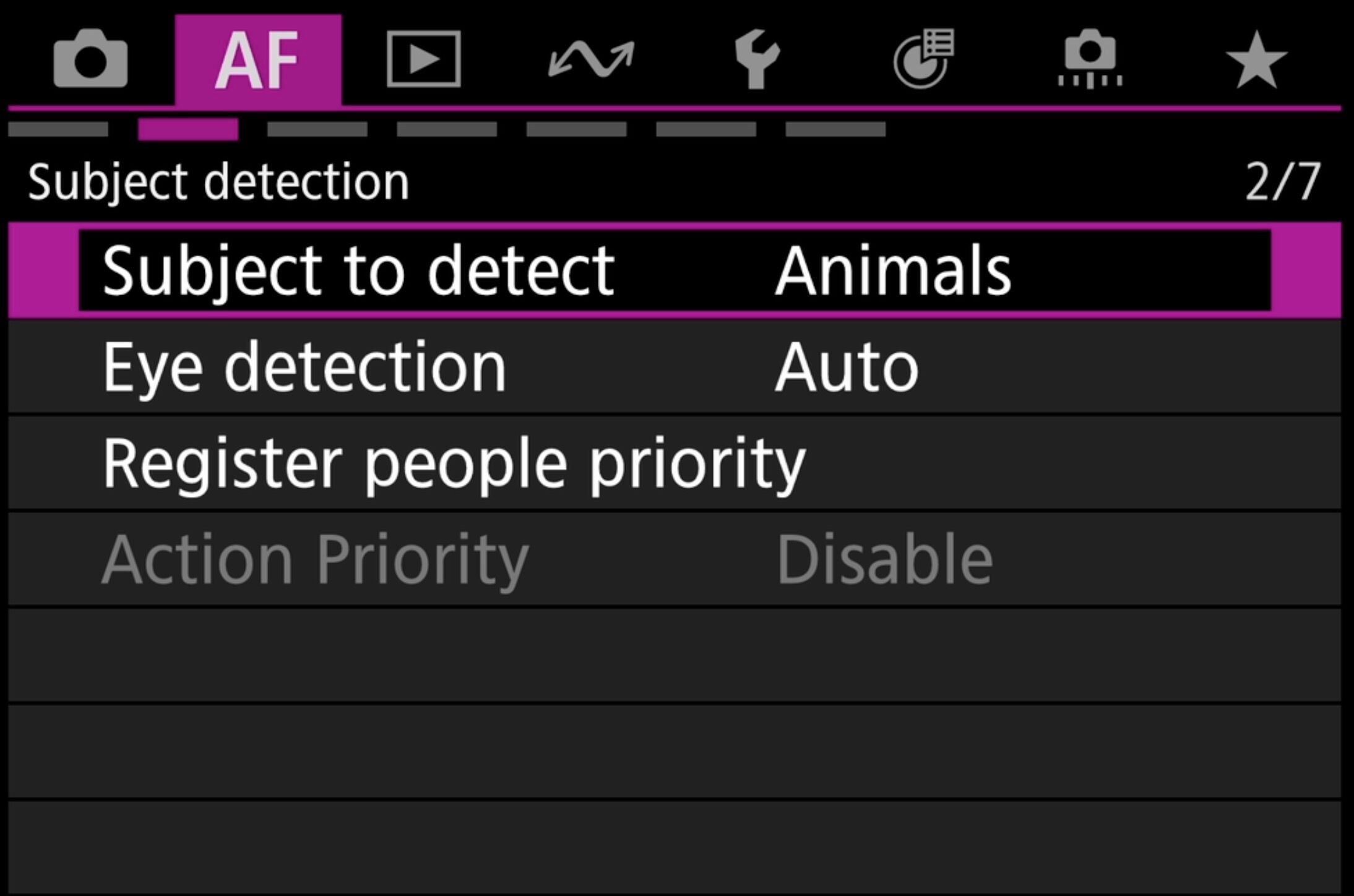
Canon R5ii AF menu 2 | Subject detectionH
Limit Subjects to Detect Canon r5ii
If you know you're only going to be photographing a certain type of subject, you may want to limit the types of subjects that the camera will try to detect. This is especially true if you follow my custom button setup listed below. To limit the subjects to detect navigate to AF menu number 5 and choose "Limit Subject To Detect". Then make sure that only your desired subject and off are checked.
The biggest case for limiting the subjects to detect is so you can easily toggle subject tracking on and off with the press of a button. Continue reading to find out how to do so.

Servo AF Character on Canon R5ii

Canon R5ii AF menu 3 | Tracking sensitivity
By default the "Servo Af Character is set to auto. You can switch it to manual by navigating to magenta menu number 3, then use the aperture wheel to choose "M" (manual). To adjust the tracking sensitivity hit the "Rate button" This will allow you to adjust the tracking sensitivity. I typically like the tracking to stay locked on once it is successfully tracking so I change the tracking sensitivity to -2 (locked on). I leave the Acceleration / deceleration tracking set to 0 in most cases. If you are tracking a highly unpredictable subject you may want to increase this setting to plus one or two.
Canon R5ii Servo First Image Priority & One Shot AF Release Priority
The Canon R5ii allows users to weigh priority on when the camera fires during auto focus. You can set the camera bias towards achieving the proper focus, firing the shot quicker (release) or balanced in the middle. I typically prefer to set the camera's priority to focus.
In magenta menu number 4 you can change the AF image priority for servo AF (Servo 1st image priority) and one shot AF (One Shot AF Release Priority) in their respective menus.

Canon R5 ii | Servo 1st image priority
Manual Focus Options Canon R5ii
In magenta menu number 6, you can turn manual focus assist options on and off. These options include focus peaking and focus guide. This is also the menu that you need to use to turn auto focus on and off if you are using a lens that does not have an AF/MF switch.

Canon R5ii magenta menu number 6
Recommended Playback Menu Changes For Canon EOS R5ii (Blue)
The blue menu is the playback menu. There is not much that needs to be changed in the blue menu for most shooters. There is one highly useful feature tucked away in blue menu number 4 though. "Highlight Alert" will cause any overexposed part of the image to flash black and white. This is very useful to tell if your highlights are blowing out or not.
NOTE: The highlight alert pertains to JPEG/HEIF images only. RAW files will have more information than a JPEG/HEIF files so a small amount of flashing when highlight alert is turned on is typically ok.

Canon R5 MKii playback menu | Highlight alert on / off
Recommended Network Menu Settings For Canon EOS R5ii (Purple Menu)
I do not not have any specific change recommendations for the purple menu but I do suggest that you pair your phone or tablet to your camera even if you do not plan on remote shooting or transferring images right away. You never know when you're going to need to trigger your camera remotely and having the network settings dialed in and ready to pair will save you precious time when you want to use the remote shooting feature. I have a great video that walks though the pairing process. You can watch it below.
Recommended Yellow Menu Changes For Canon EOS R5ii
There are a couple of adjustment in the Yellow menu that you should consider making in order to get the most out of your Canon R5ii.
Set Auto Rotate To Computer Only
By default, vertical image will rotate to the horizontal orientation when played back. There are two downsides to this. First, the screen is vertical so when the image rotates there is less screen real-estate and the image becomes smaller / harder to see. The second issue is that you have to turn your head sideways when shooting on a tripod. If you want to keep your sanity, change this setting ASAP.
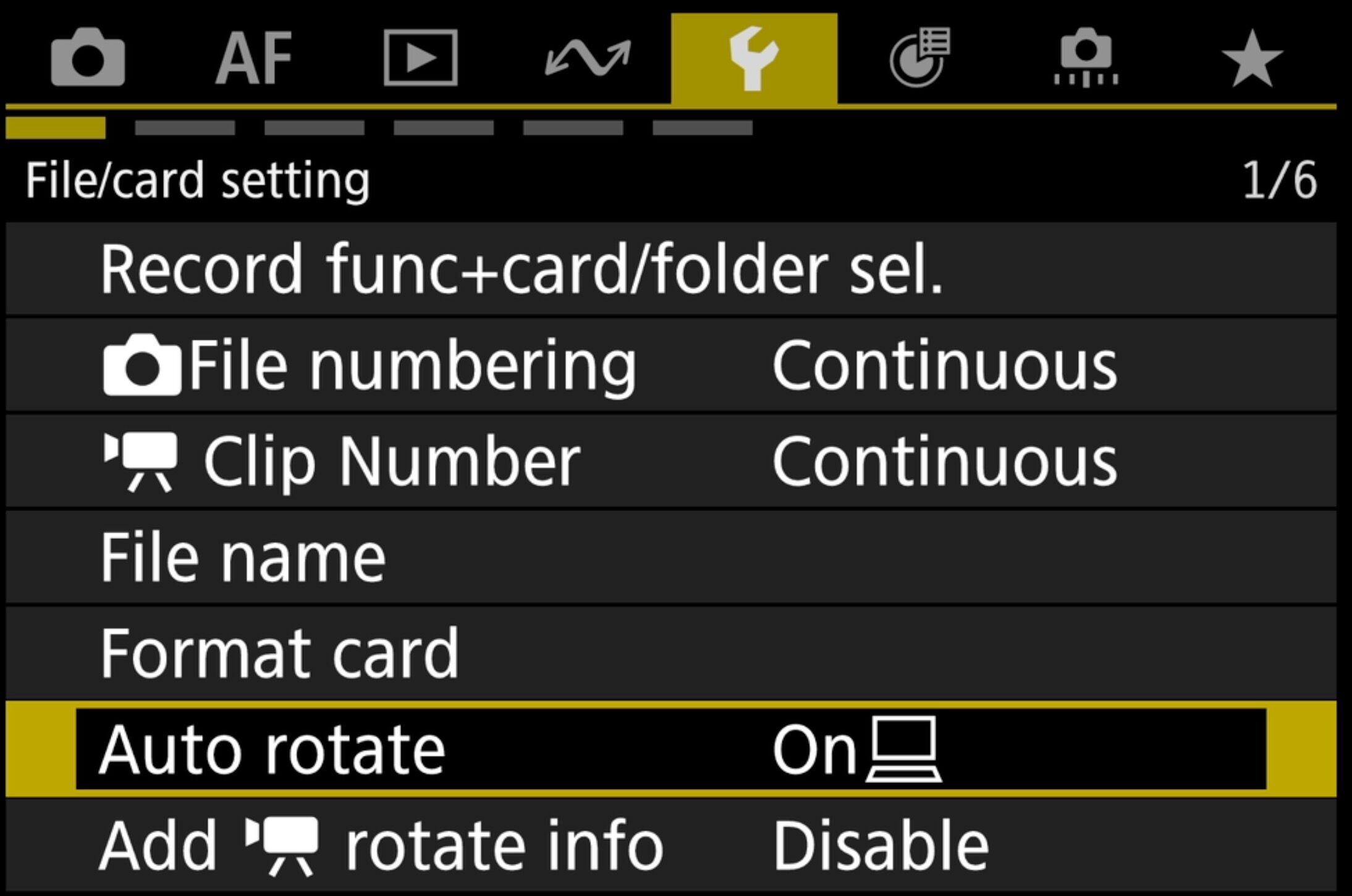
Canon R5ii Yellow menu auto rotate on computer only
How To Set The Date & Time Canon R5ii
Setting the date and time is one of the most important settings on your camera because it will be recorded into the metadata of every image. If you're shooting with two camera bodies it is absolutely essential to make sure that they are set to the same date and time, otherwise your photos will not be in chronological order.
To set the date and time, navigate to yellow menu number 2 and select Date Time/Zone.
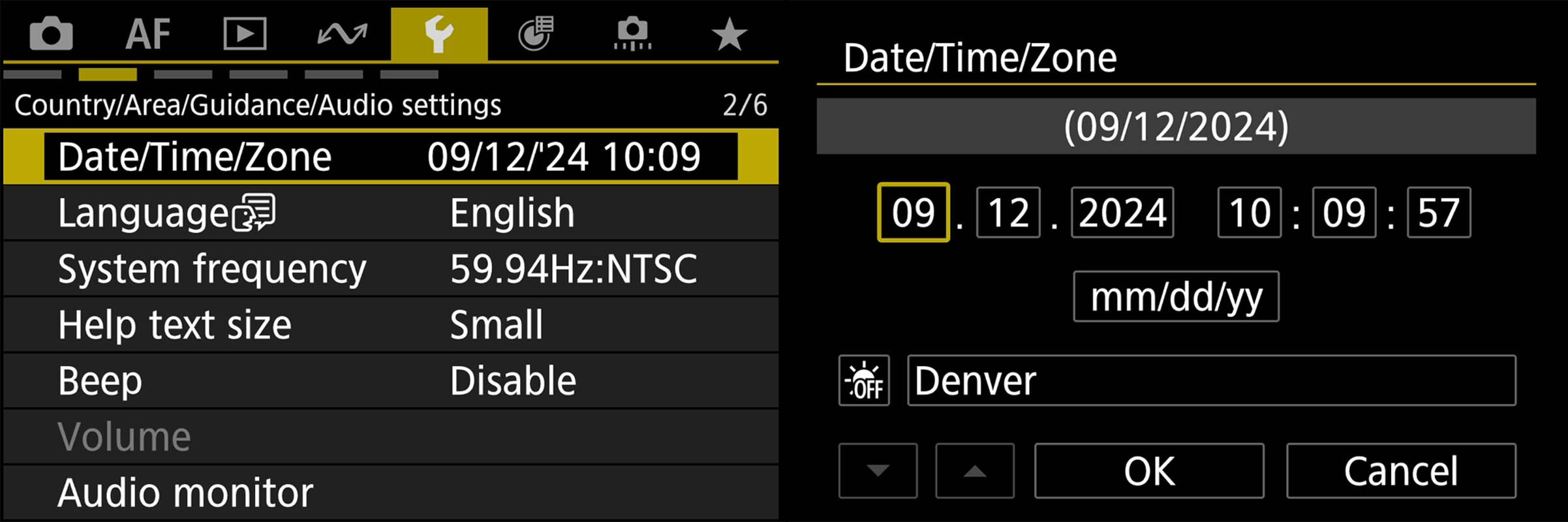
Canon R5ii How To Set The Date And Time
How to turn off the beep sound on Canon R5ii
The beep is often more of an annoyance than anything. It can scare animals, be distracting to human subjects and cause attention during street photography. To turn off the beep navigate to yellow menu number 2 and scroll down to "Beep". Hit set and choose disable.

Canon R5ii how to turn beep sound off
Adding Copyright Info To Your Photos
You can add copyright information that is recorded into your photo's metadata. To do this, navigate to Yellow menu number 6 and select "Copyright Information". Then choose " Enter Author's Name" and enter you name. Next, select "Enter Copyright Details" below. In this field you can either add you name again or type in the name of your business.
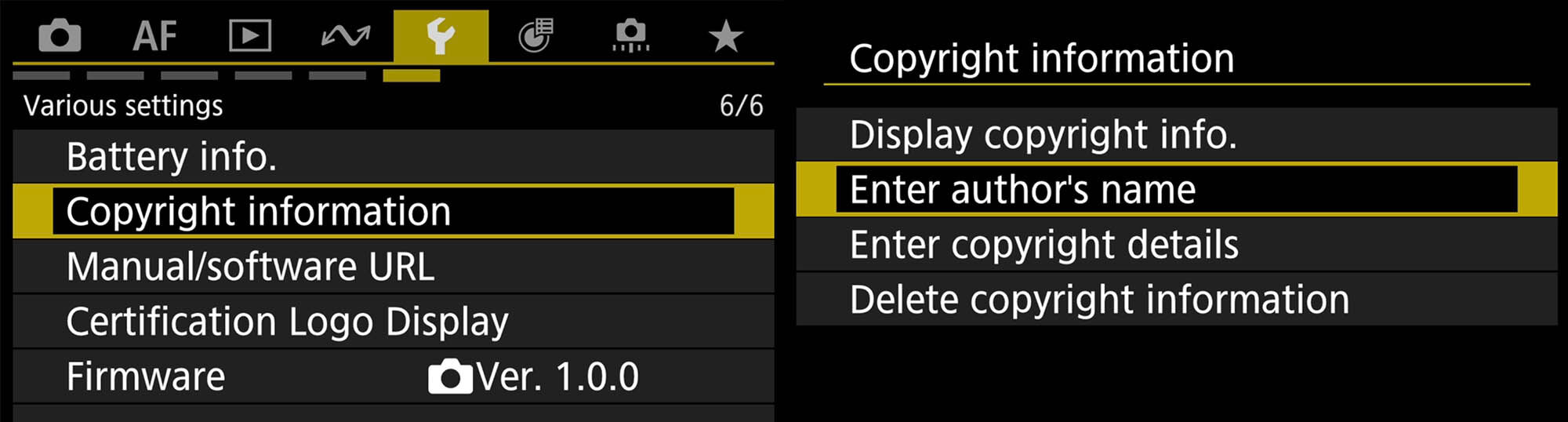
Canon R5ii Copyright info
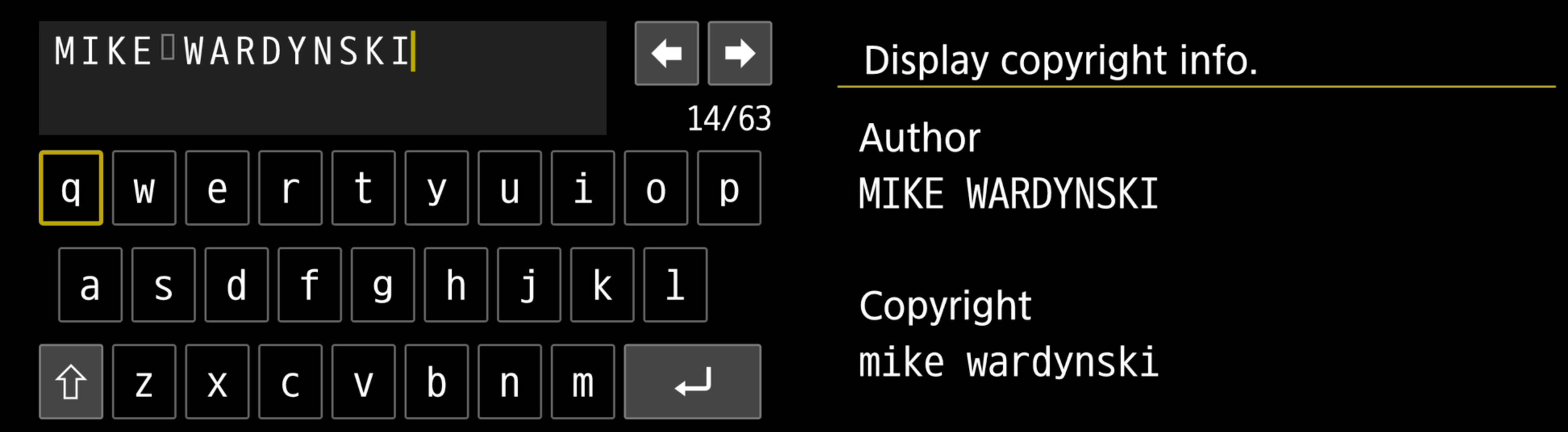
Canon R5ii yellow menu adding copyright info to your images
When you're finished, you can select "Display Copyright Info" to view the text that you just entered.
Recommended Green Menu Changes For Canon EOS R5ii
The green menu is where you can customize buttons and dials. There are some important button customization that you might want to consider to make shooting more streamlined.
How To Customize Buttons On The Canon R5ii
To customize the Canon R5ii buttons, navigate to green menu number 1, (Not the star menu) and choose "Customize Buttons For Shooting". The next screen that opens will allow you to select specific buttons for customization.

Canon R5ii Green menu | Custom buttons and controls.
Back Button Focus Only
The first thing I do is set the shutter button to meter only. This effectively sets the camera to "back button focus". This means that the camera will not focus unless you hit the "AF-On" button on the back of the camera. Back button focus is useful for a wide variety of shooting scenarios.
Switching your camera to back button focus will prevent the camera from trying to focus when you do not want it to. This is useful when in low light and tough weather conditions. It also eliminates the need to refocus every time you take a shot if your subject has not moved. In tough lighting conditions you may end up missing the shot if your camera is trying to refocus.

Canon R5ii Custom Buttons for back button focus
Toggle To Eye Detection AF
I set the asterisk (AE lock) to "Eye Detection AF". This allows me to effortlessly switch between back button auto focus and eye detection auto focus simply by moving my thumb one button over.
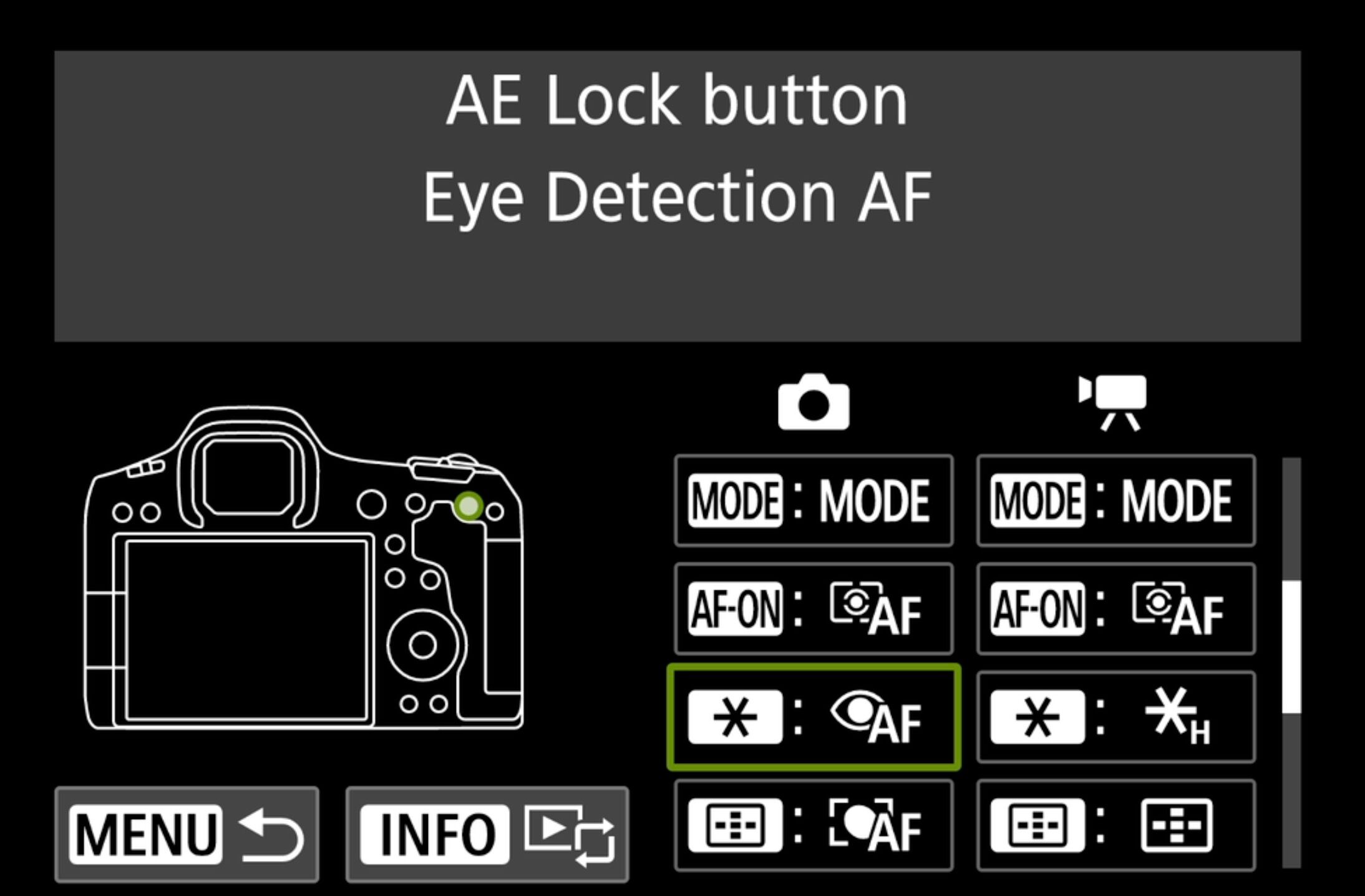
Canon R5ii Green menu | Eye detection AF
Direct Select Of Subject To Detect (Subject detection on/off)
If you watched the video at the top of this page, you'll notice that I originally programed this button to start and stop focus on whole AF area. There's really no reason to do this since subject detection will use the whole AF area. I think a better choice for this button is to set it to "Direct Select Of Subject To Detect" this will allow you to quickly toggle between subject detection and a single AF point as long as you followed my instructions for the AF menus above.

Make Sure Touch Shutter Is Turned Off
Touch shutter is disabled by default but it's important to know where it is located in the camera's menu just in case it accidentally gets turned on. To enable/disable touch shutter navigate to green menu number 1 and select "Touch Shutter".
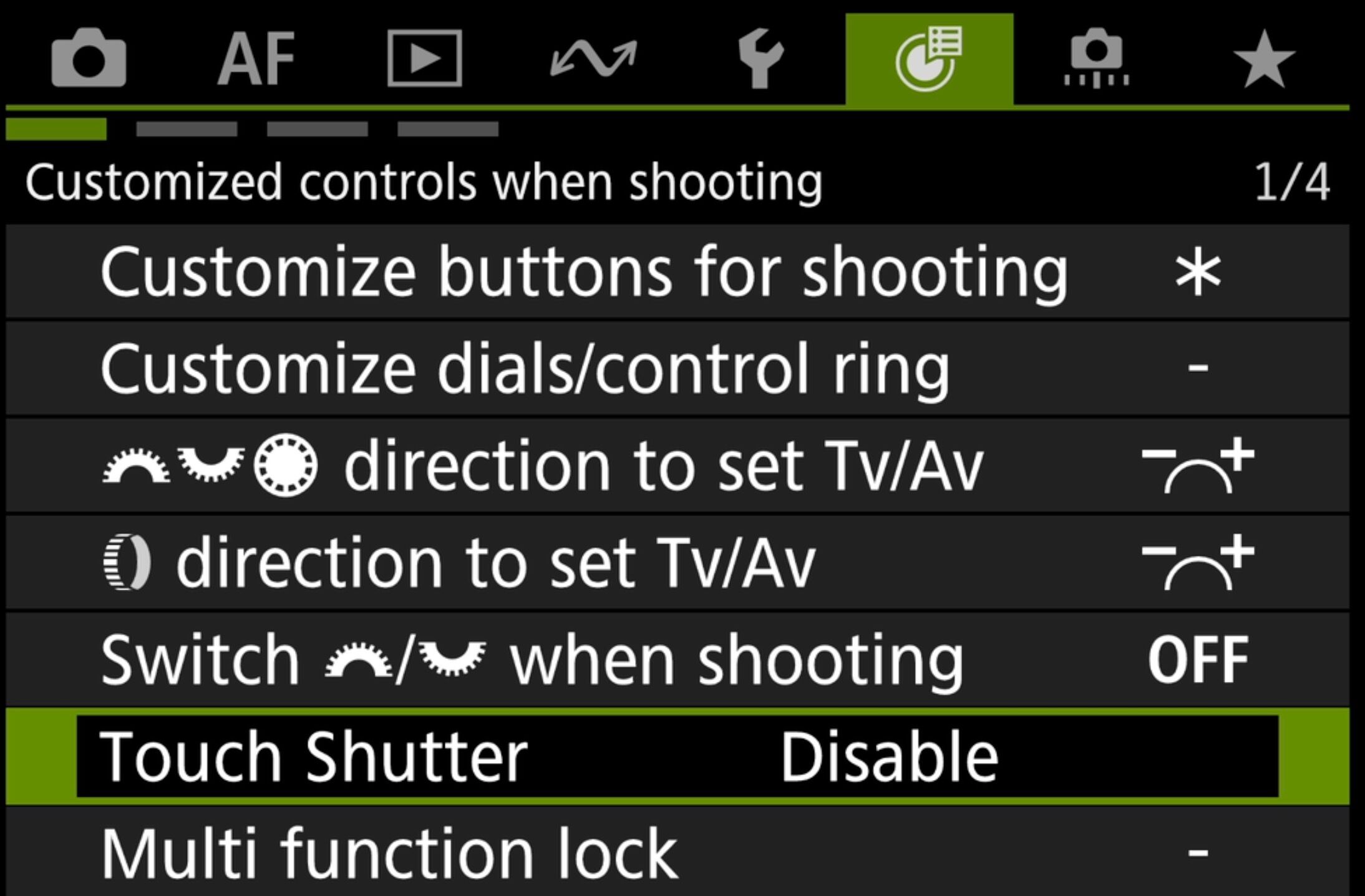
Canon R5ii Green menu 1 | Touch shutter disable / enable
Recommended Orange Menu Changes For Canon EOS R5ii
The Orange menu is where your preference style changes are made in the Canon R5ii such as switching between 1/2 and 1/3 exposure increments. There are a couple of settings in this menu that you should be aware of that I will highlight below.
Changing The Number Of Bracketed Shots On Canon R5ii
The default number of bracketed shots on the Canon R5ii is three. You can expand this to five or seven for very high contrast scenes. To change the number of bracketed shots navigate to Orange menu number 1 and choose "Number Of Bracketed Shots".

Canon R5ii Orange menu 1 | Number of bracketed shots
Changing The Maximum Number Of Frames Per Second On Canon R5ii
When using the electronic shutter shutter you can choose to limit the number of frames per second that the camera shoots. This is useful because 30 and 20 frames per second is a whole lot of photos to sort through. To change maximum continuous burst speed while using the electronic shutter navigate to orange menu number 3 and select "Continuous Shooting Speed". in the next menu you can change the maximum burst rate for "High Speed Continuous +, High Speed and Low Speed continuous shooting.

Canon R5ii Orange menu continuous shutter speed settings menu
Conclusion
The Canon R5ii is an extremely powerful camera. Following this guide will help you get the most out of your time shooting. Check this site often and follow my YouTube channel for more guides and tutorials. I plan on releasing many more in the coming weeks and months.